
Getting started
Download and install
Download and install the ModaPOS app using the buttons below. Available on both iOS and Android.

1. Signing up / logging in
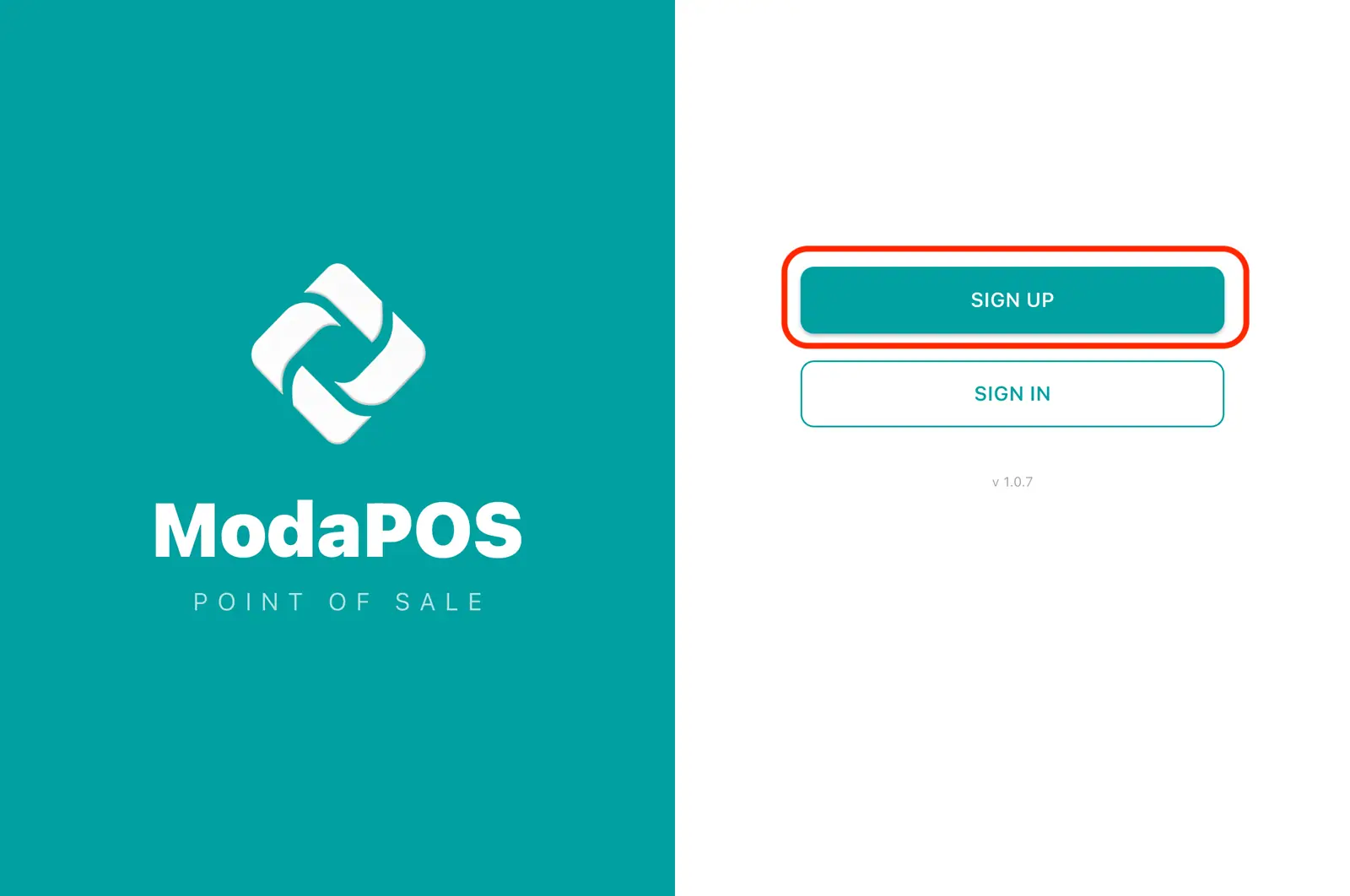
1Opening the app for the first time shows the login screen. If you are new, tap Sign up.
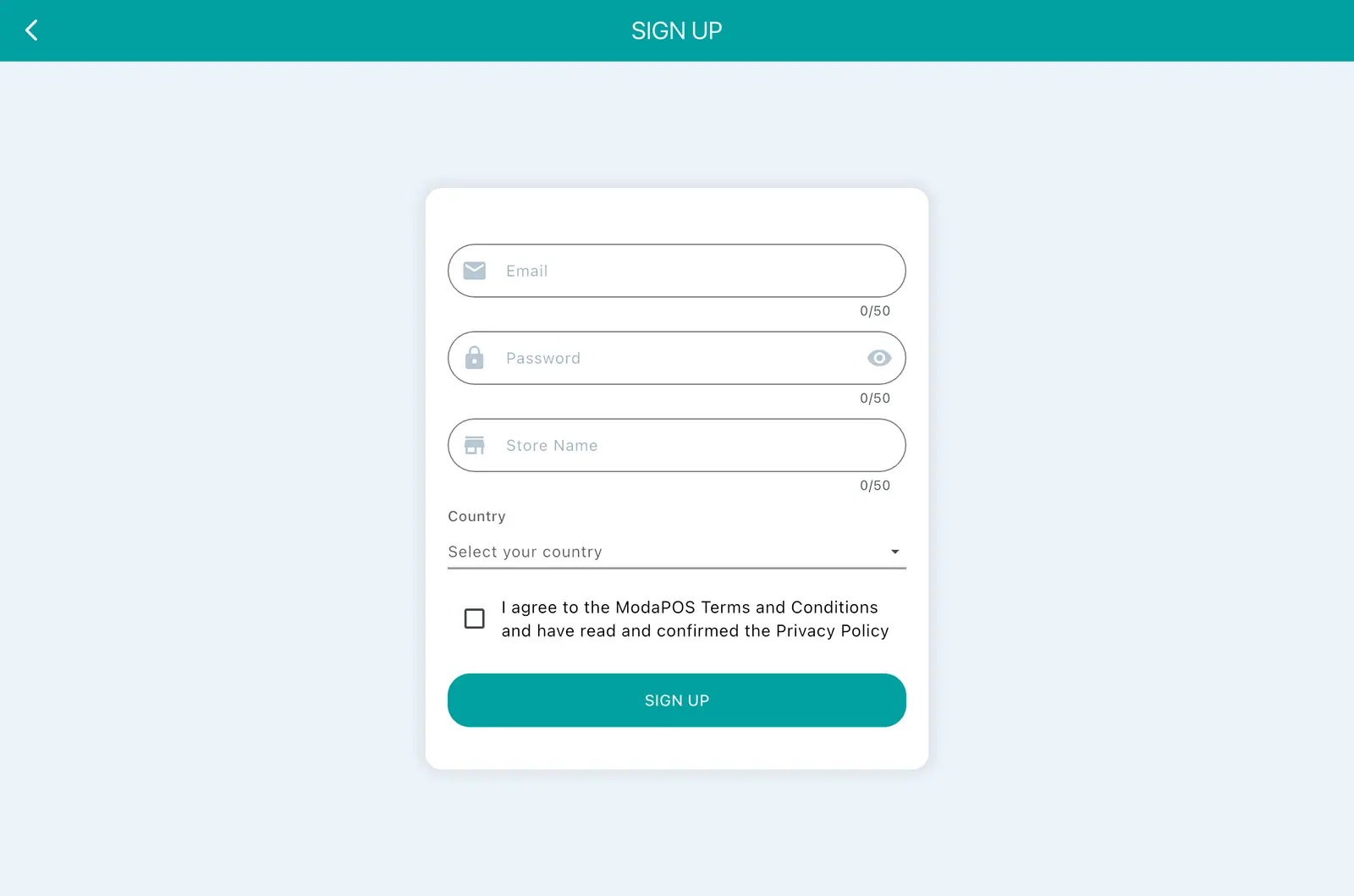
2Fill in the sign-up form — email, password, store name — and pick your country. Once you are done you are logged straight in with that account.
2. The first sales screen
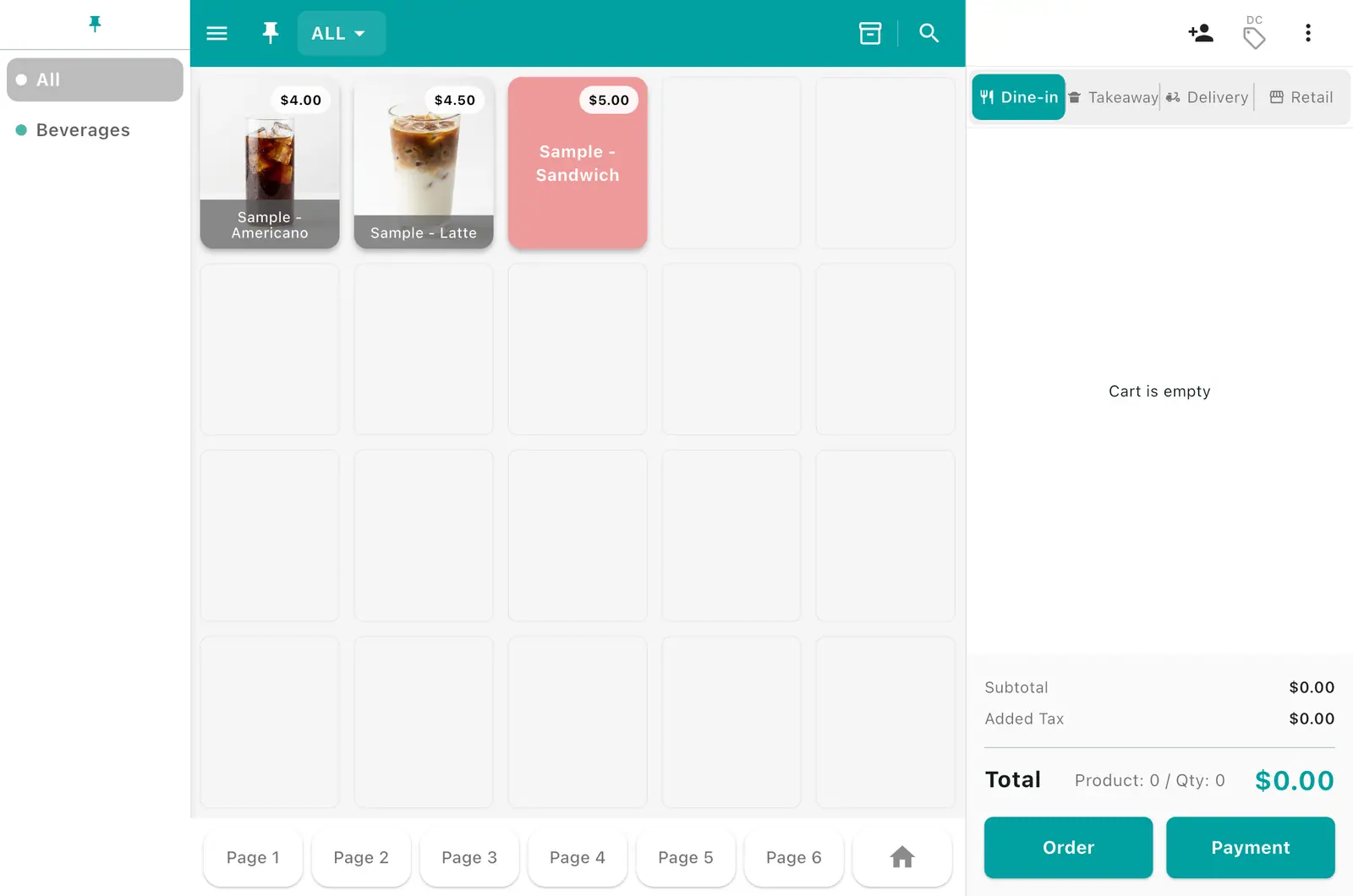
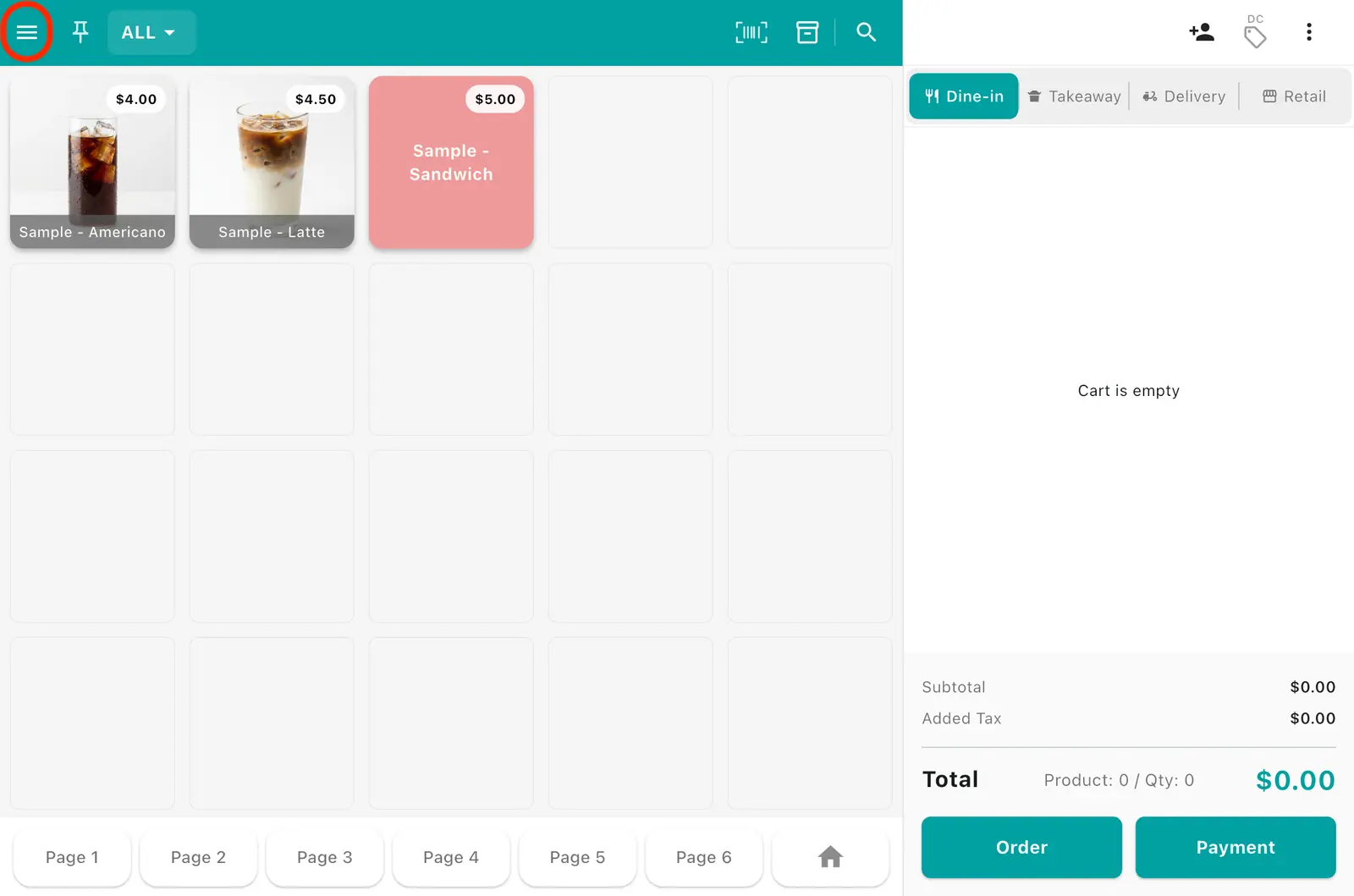
1Logging in opens the sales screen. At first it holds sample products (Americano, Caffè Latte, and so on) to practise with — delete them once your real products are in.
3. A tour of the menus
1Tap the ≡ (menu) button at the top left.
2The menu opens on the left. From here you reach Sell, Receipts, Products, Settings, Back Office, and Kiosk mode.
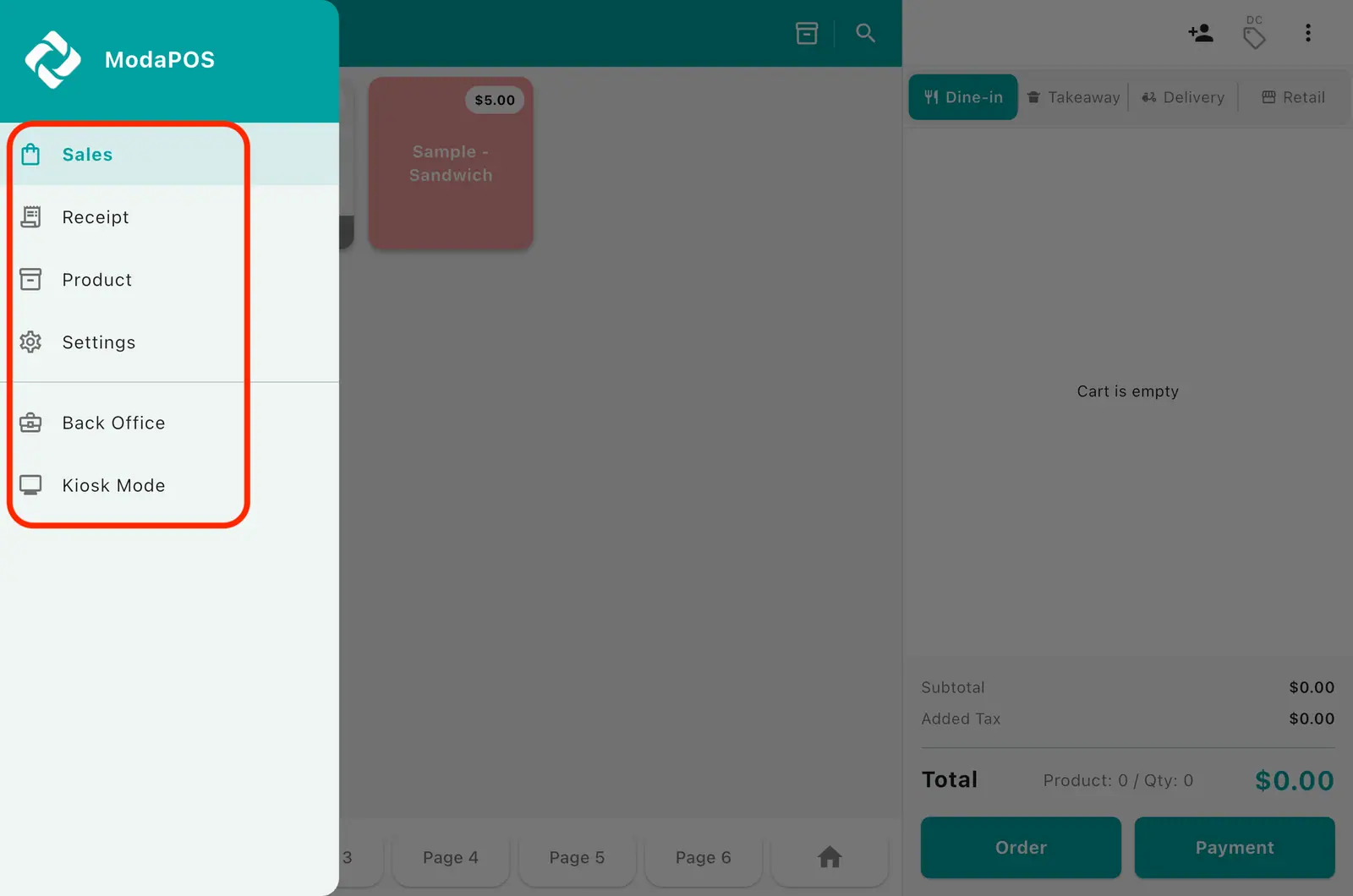
| Menu | What it does |
|---|---|
| Sell | The main screen for adding items and taking payment |
| Receipts | Look up past sales, reprint, refund |
| Products | Register products, categories, add-ons, discounts |
| Settings | Store details, printers, language |
| Back Office | Sales reports, customer management, account and subscription |
| Kiosk mode | Switch to the customer self-order screen |
Back Office and Kiosk mode appear on tablets only.