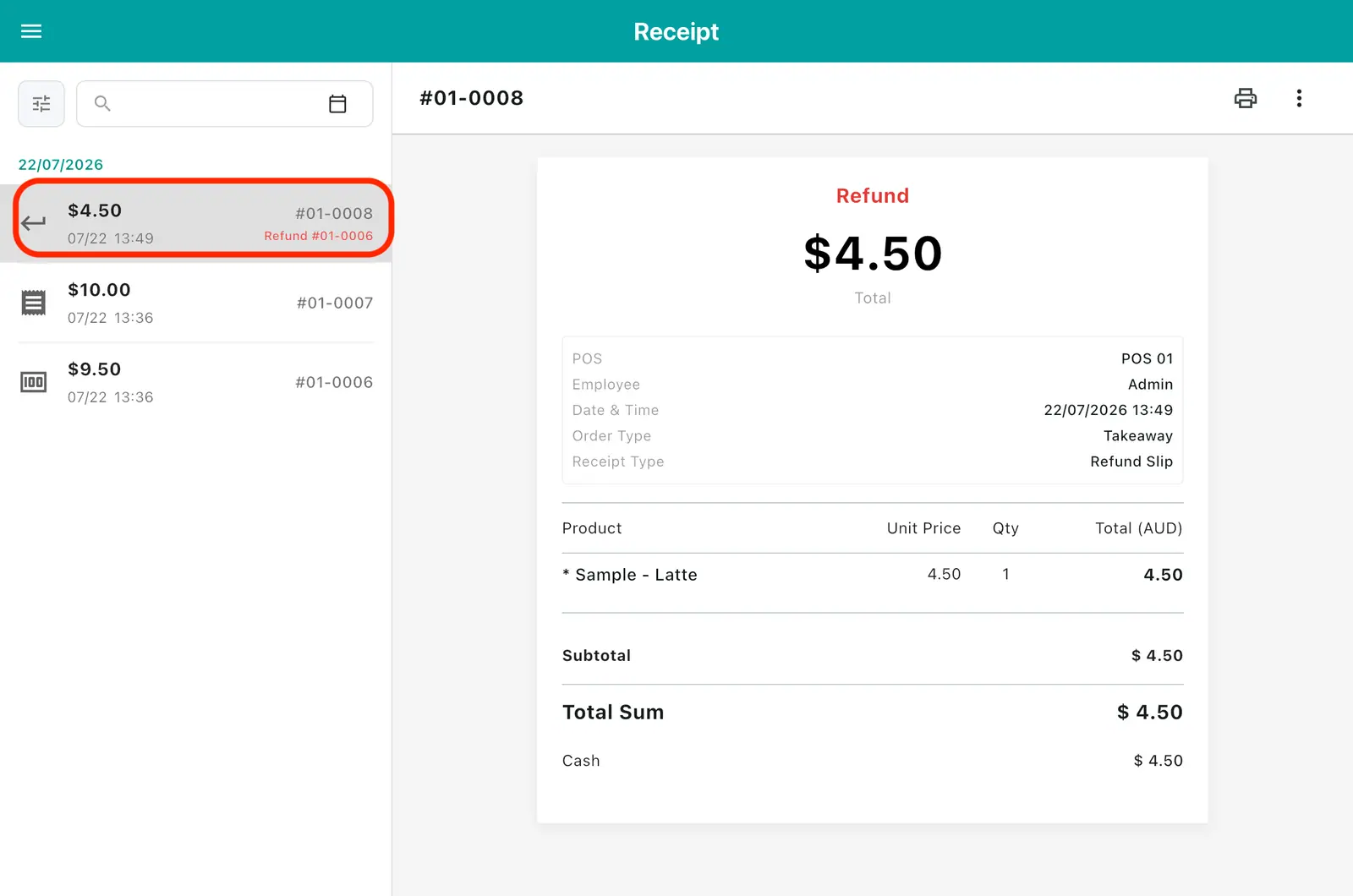
Receipts and refunds
1. Opening the Receipts screen
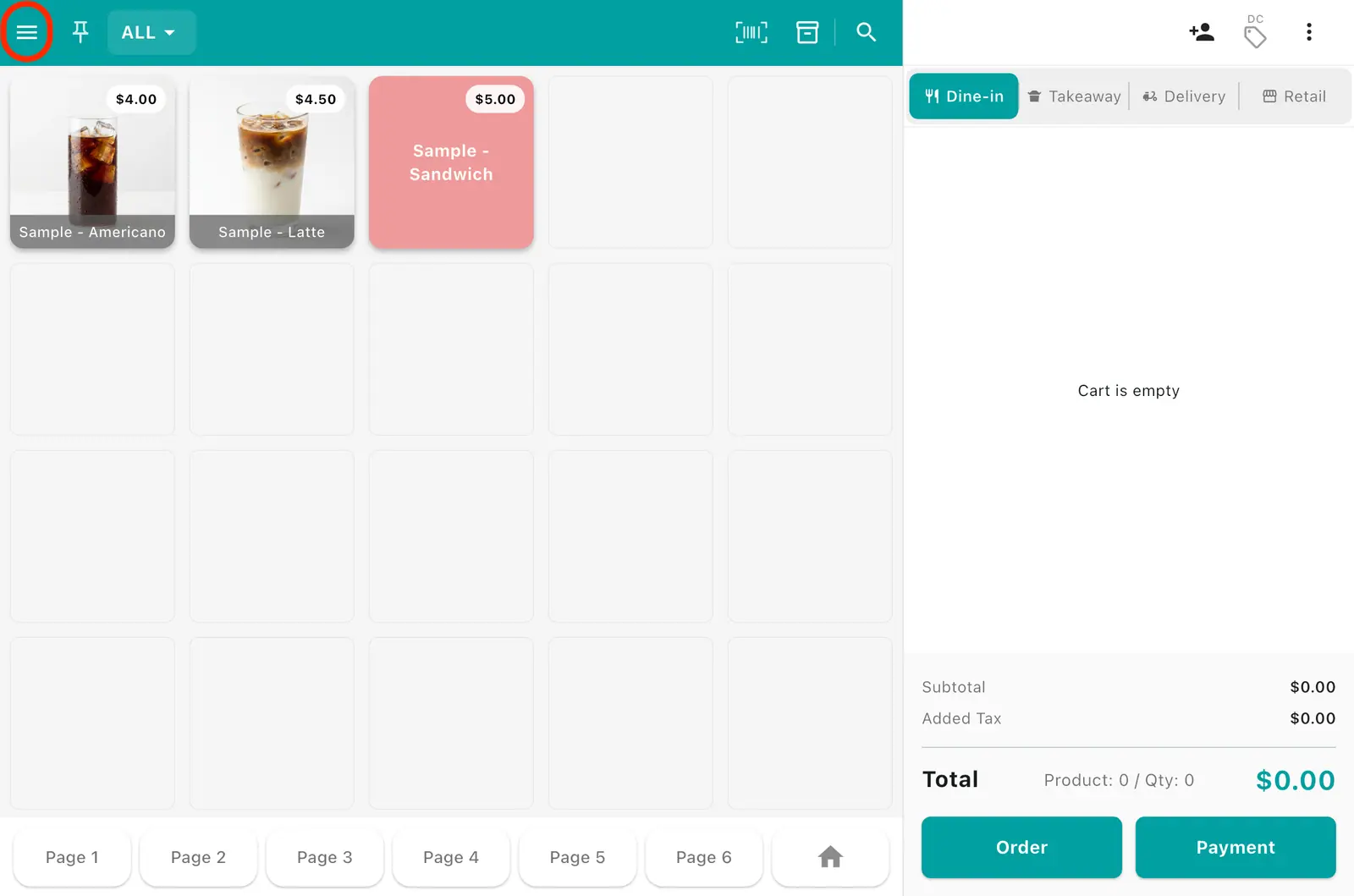
1Tap the ☰ menu icon at the top left.
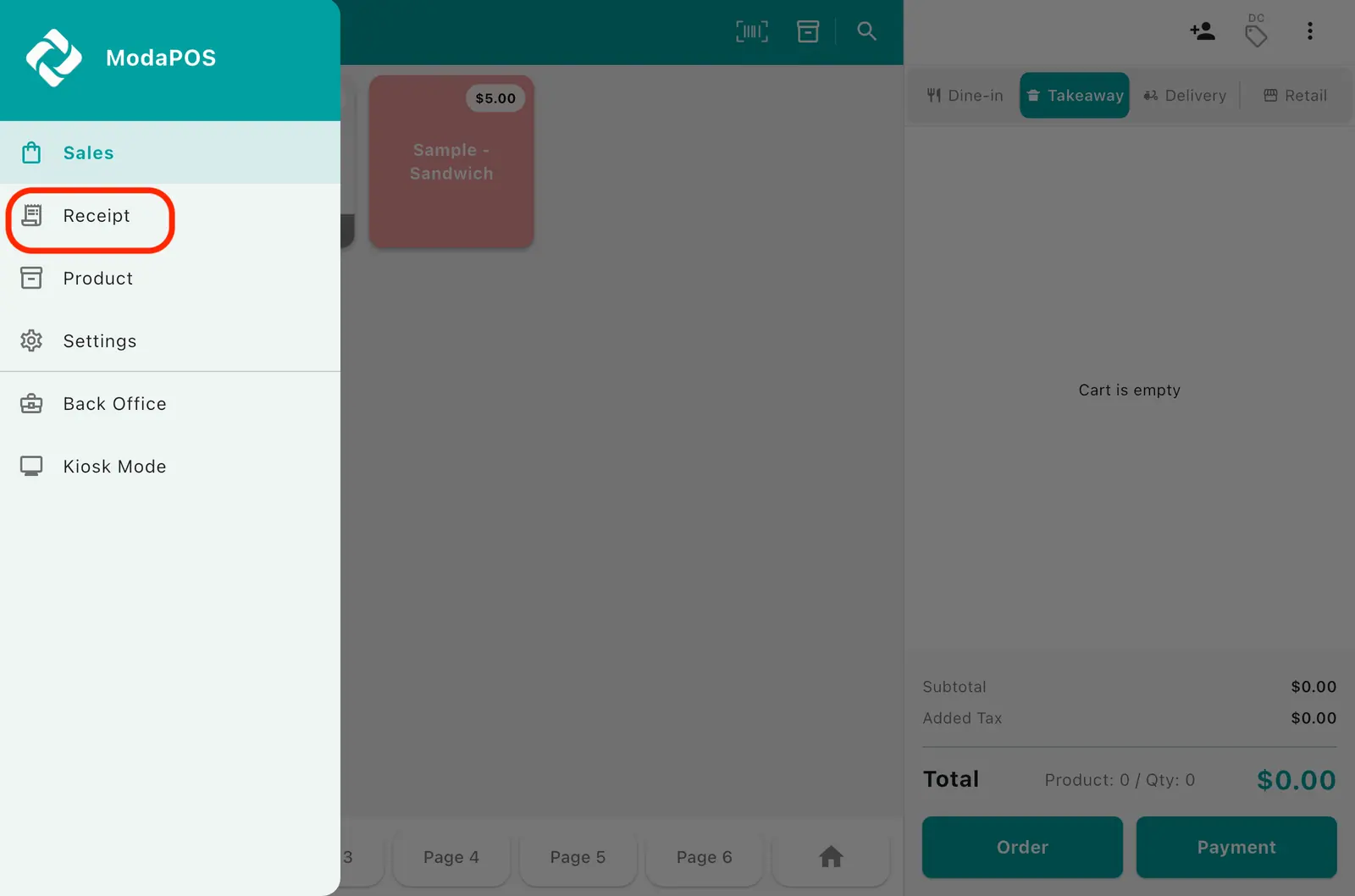
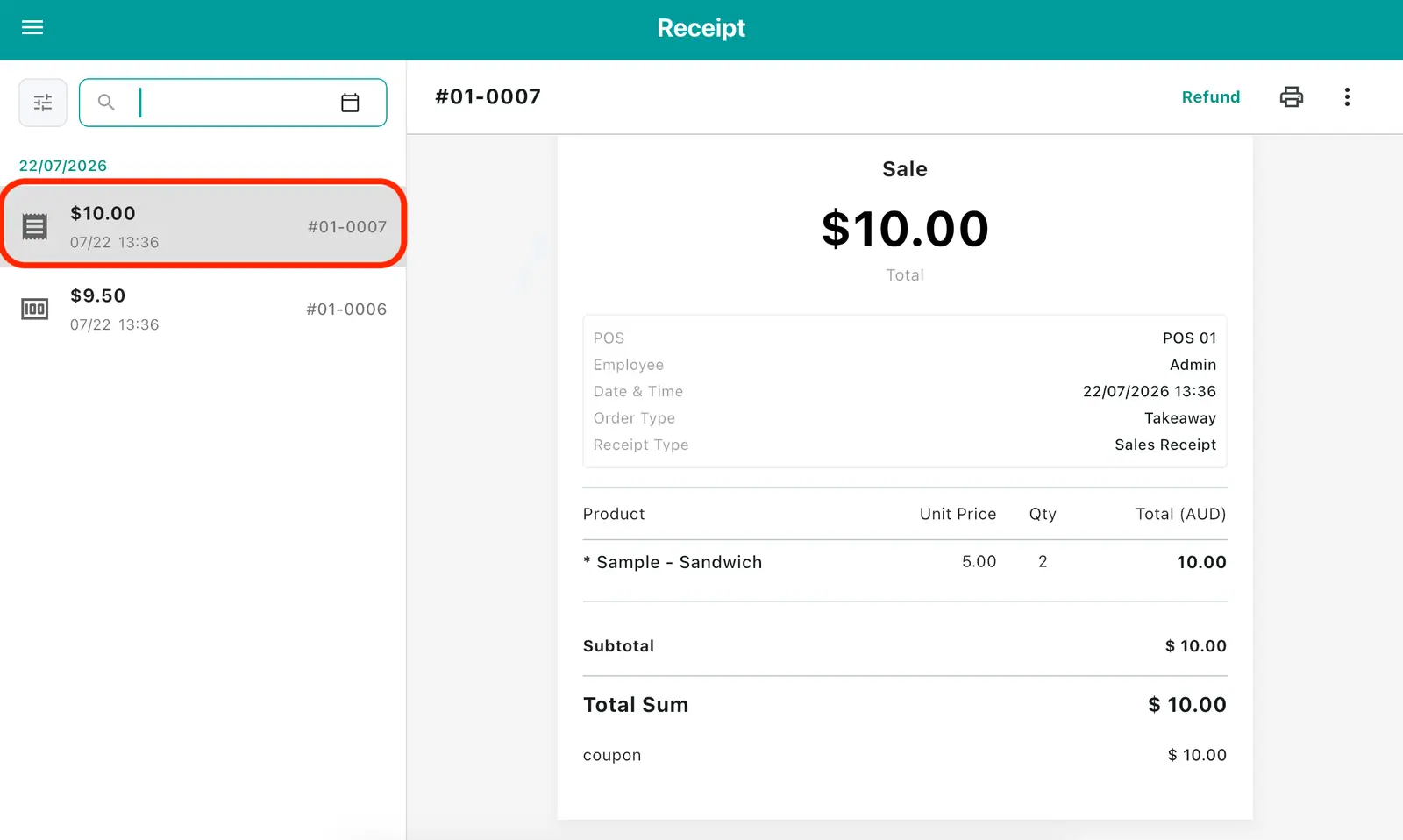
2Tap Receipts in the side menu.
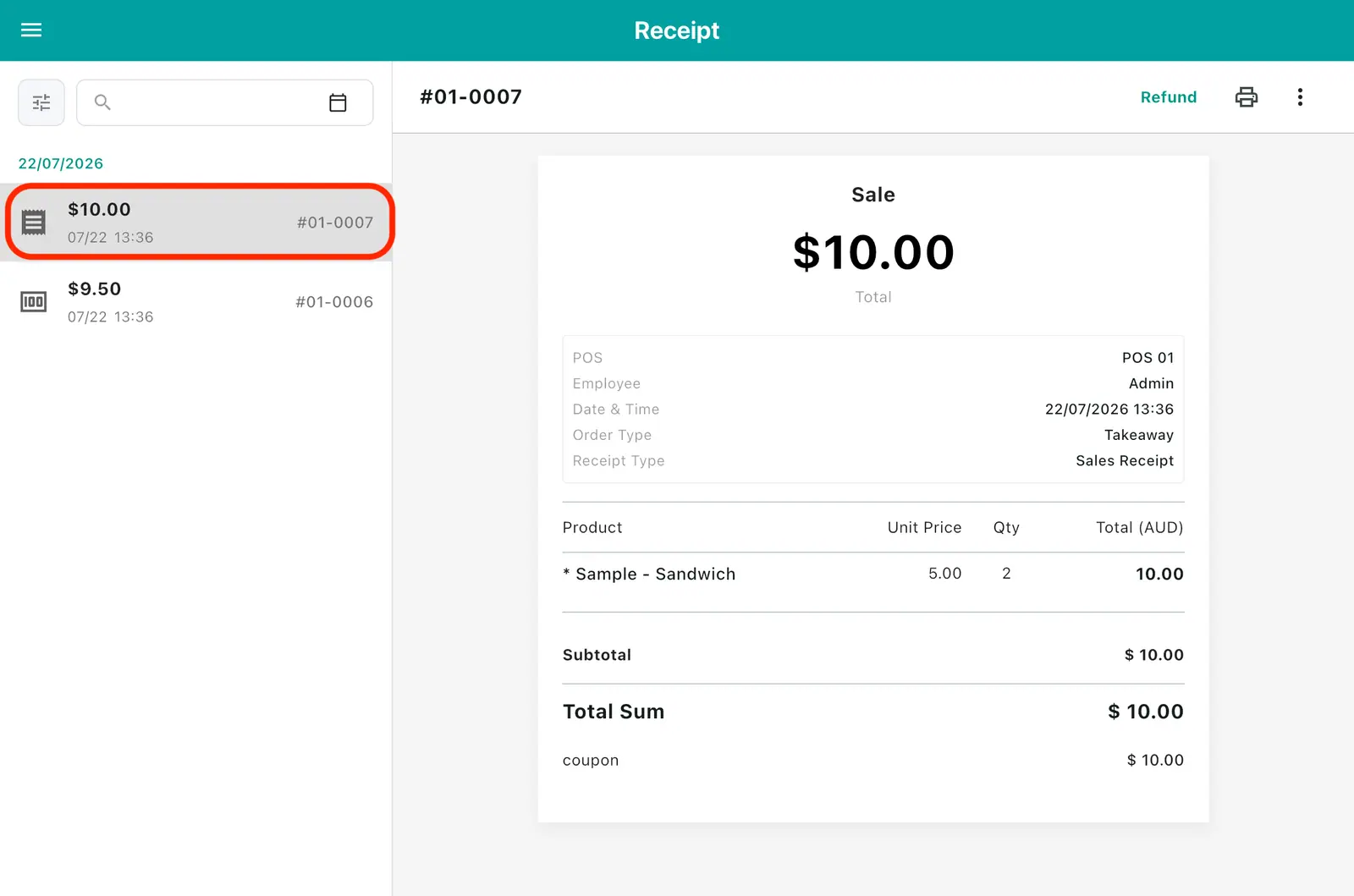
3The receipt list is on the left, the selected receipt's detail on the right. Tap a receipt in the list to see its detail.
2. Finding a receipt
Use the filter, calendar, and search above the list to see just what you want. If what you are looking for is missing, tap Sync — sales made on another tablet only appear after a sync.
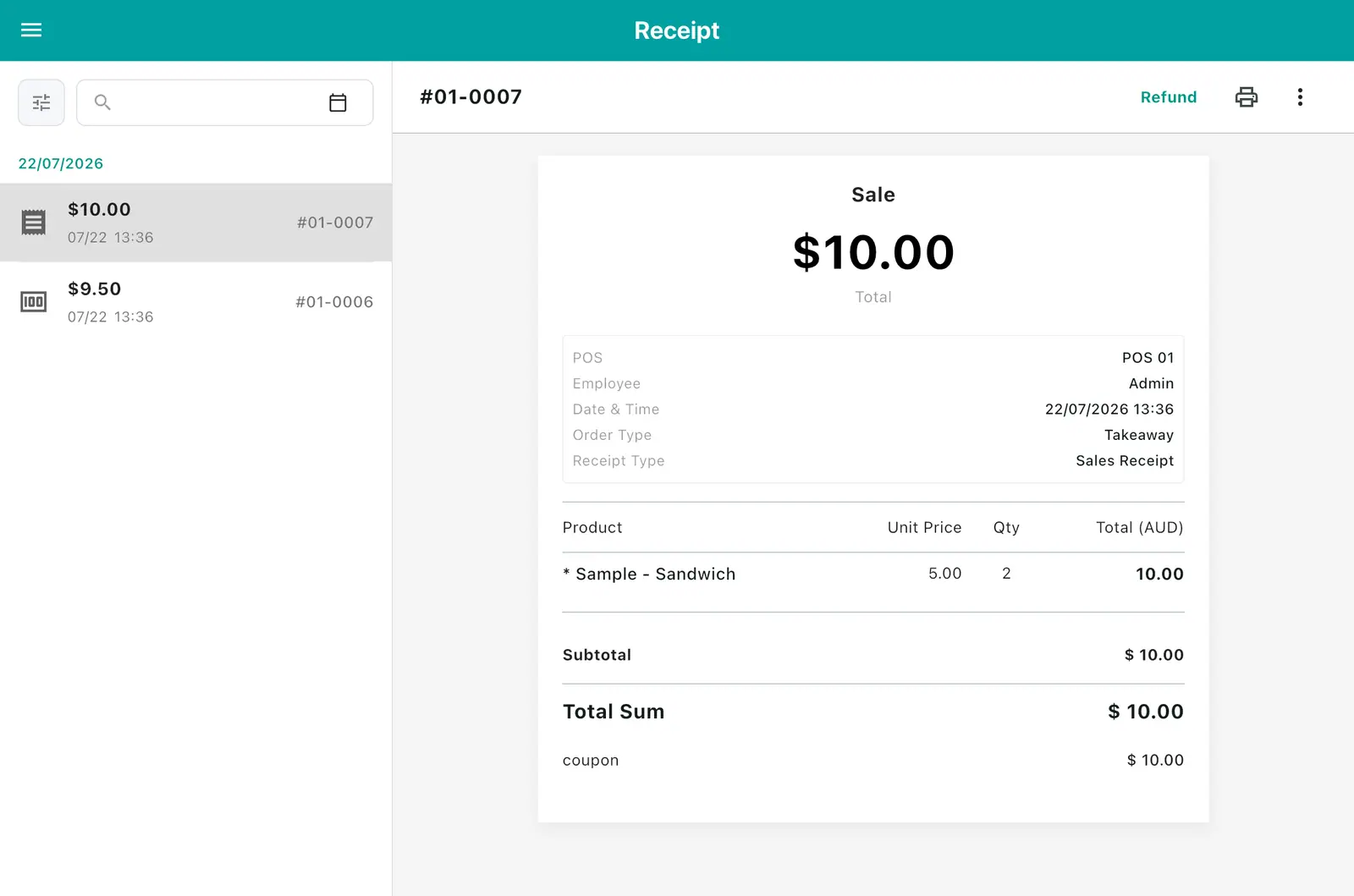
1Tap the filter button at the top left.
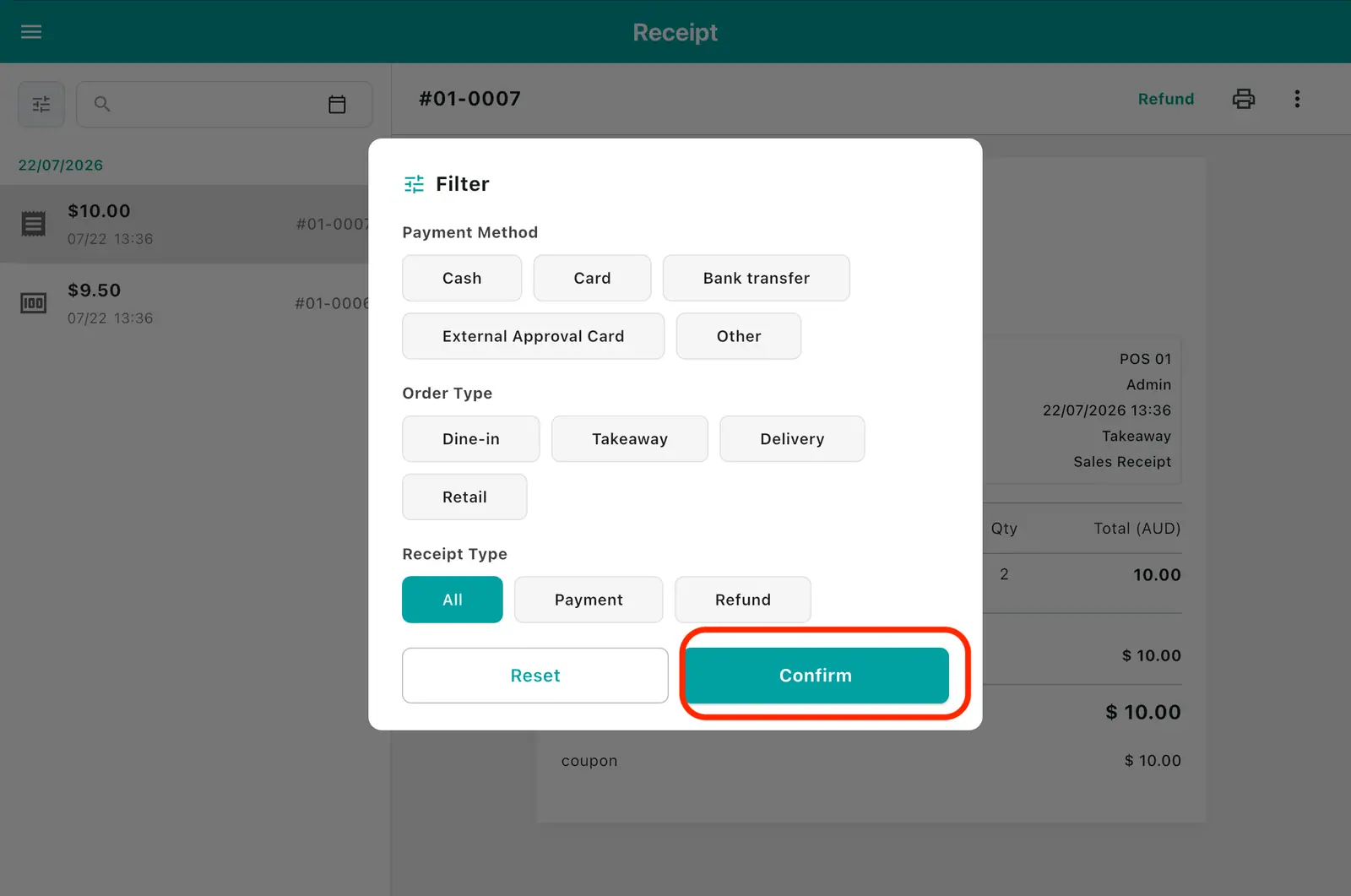
2In the filter popup, choose order type, payment method, and so on, then tap OK. Reset clears every filter.
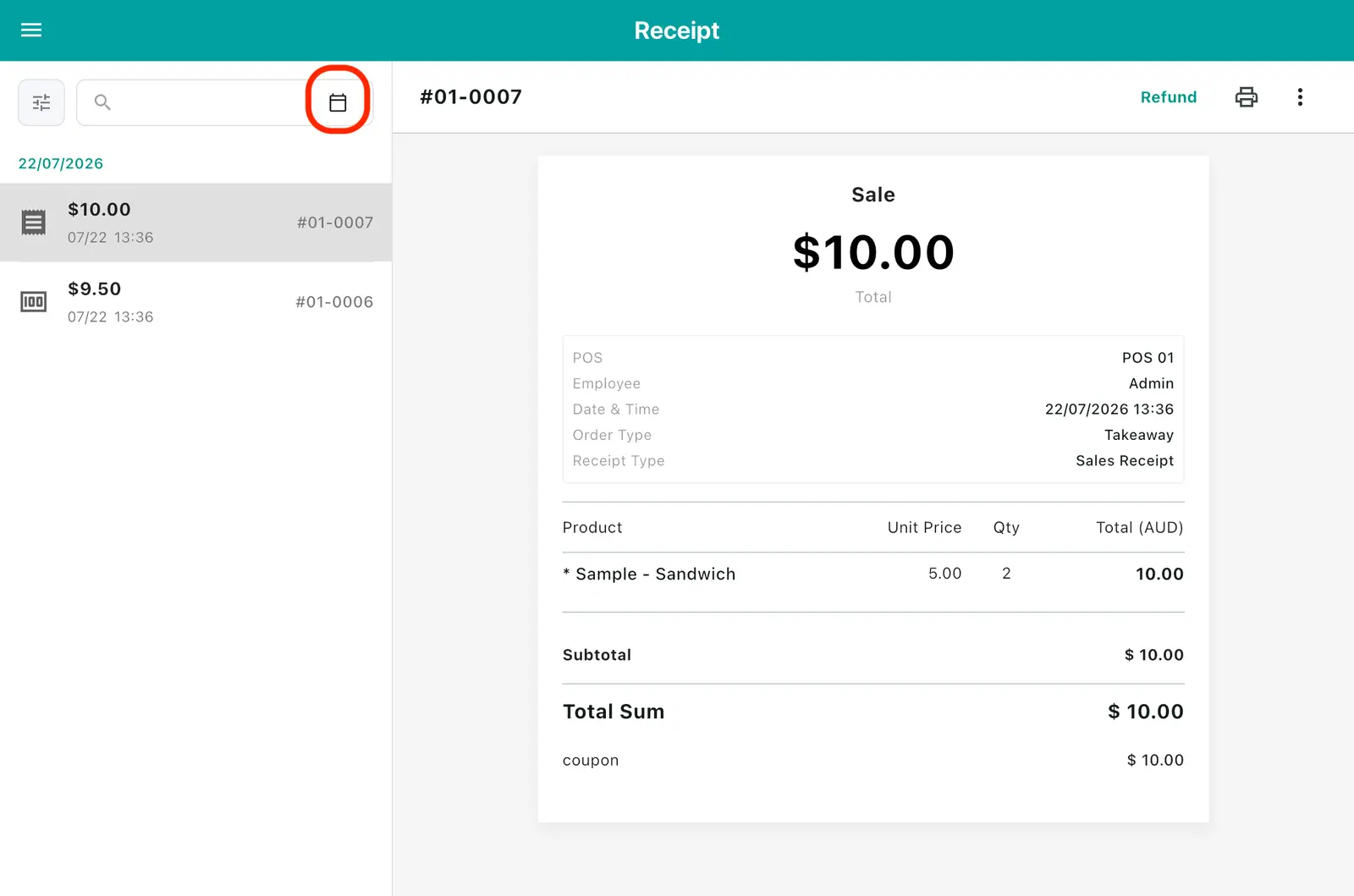
3Tap the calendar button at the top left.
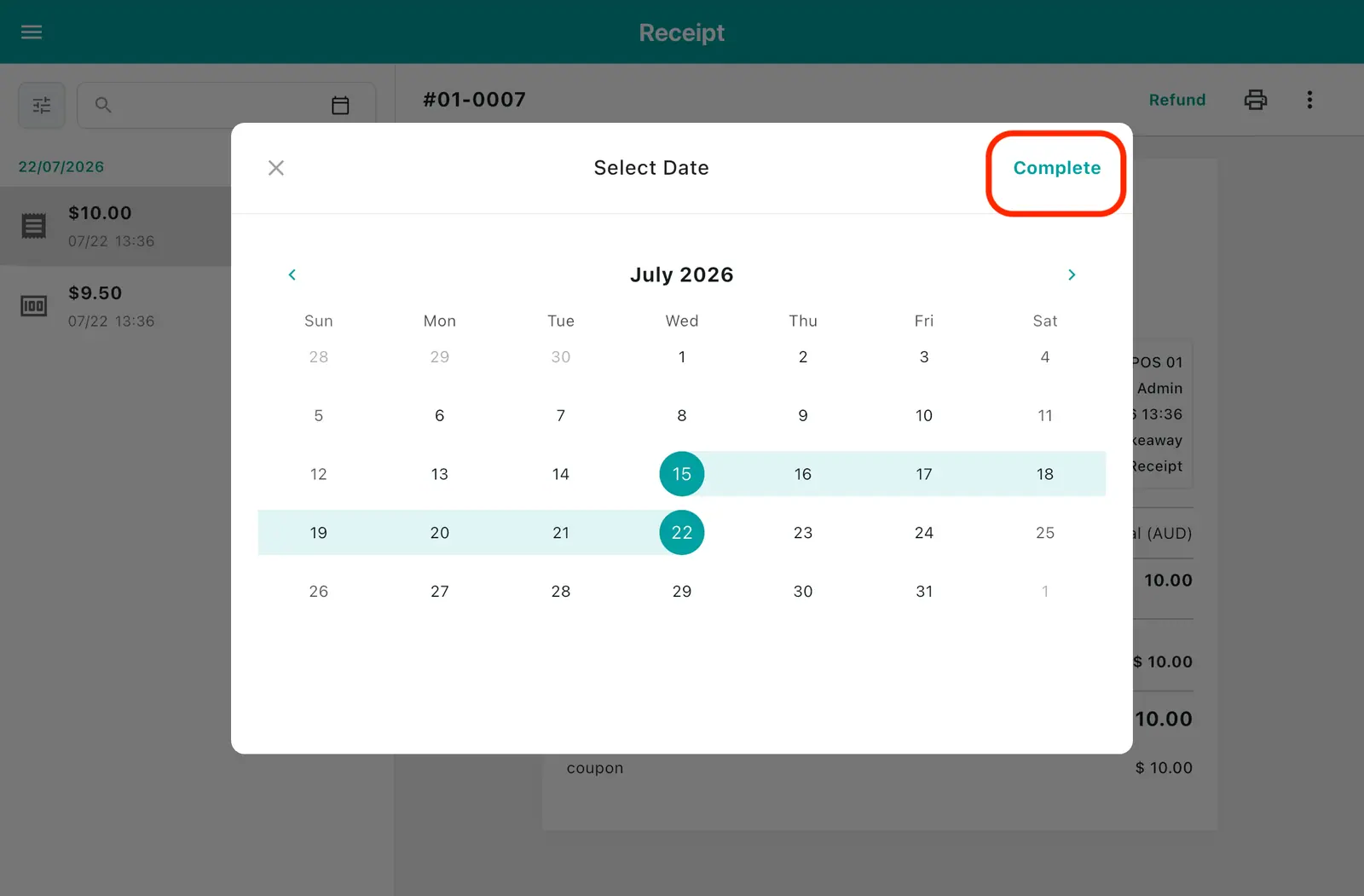
4Pick the date you want in the calendar popup and tap Done.
5Tap the search box at the top left. Enter a receipt number, amount, customer name, or phone number to find matching receipts.
3. Reprinting a receipt
Reprint for customers who lost theirs.
1Tap the Print button at the top right of the receipt detail.

4. Emailing a receipt
1Tap ⋮ at the top right of the receipt detail.

2Tap Send by email.

3Enter the customer's email address and tap Send.

Emailing requires an internet connection.
5. Refunds
Some screens say "Return". Same thing.
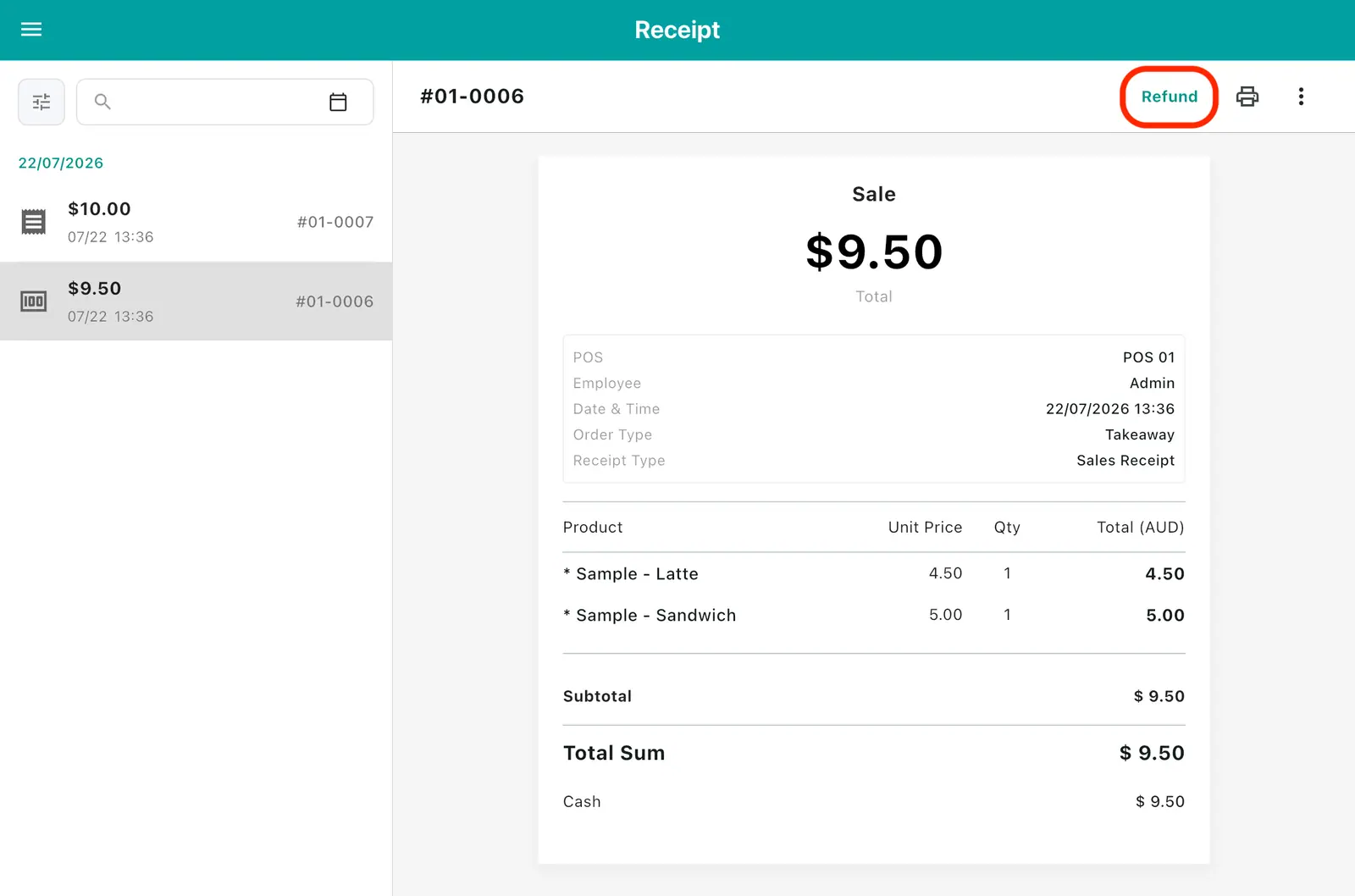
1Select the receipt to refund, then tap the Return button at the top right.
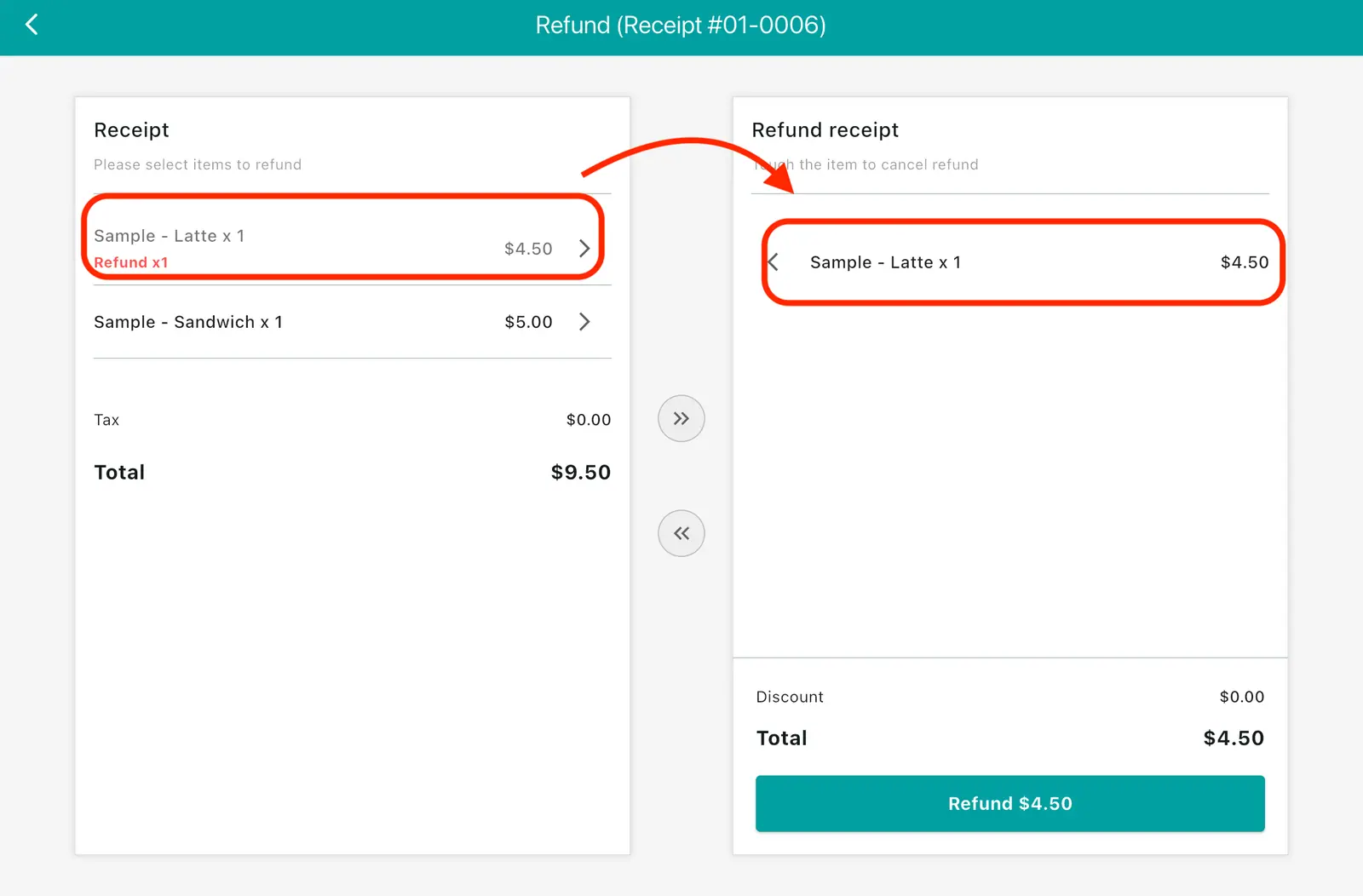
2The return screen opens. Tapping an item in the left receipt moves it to the refund receipt on the right. Pick only the items you want to refund.
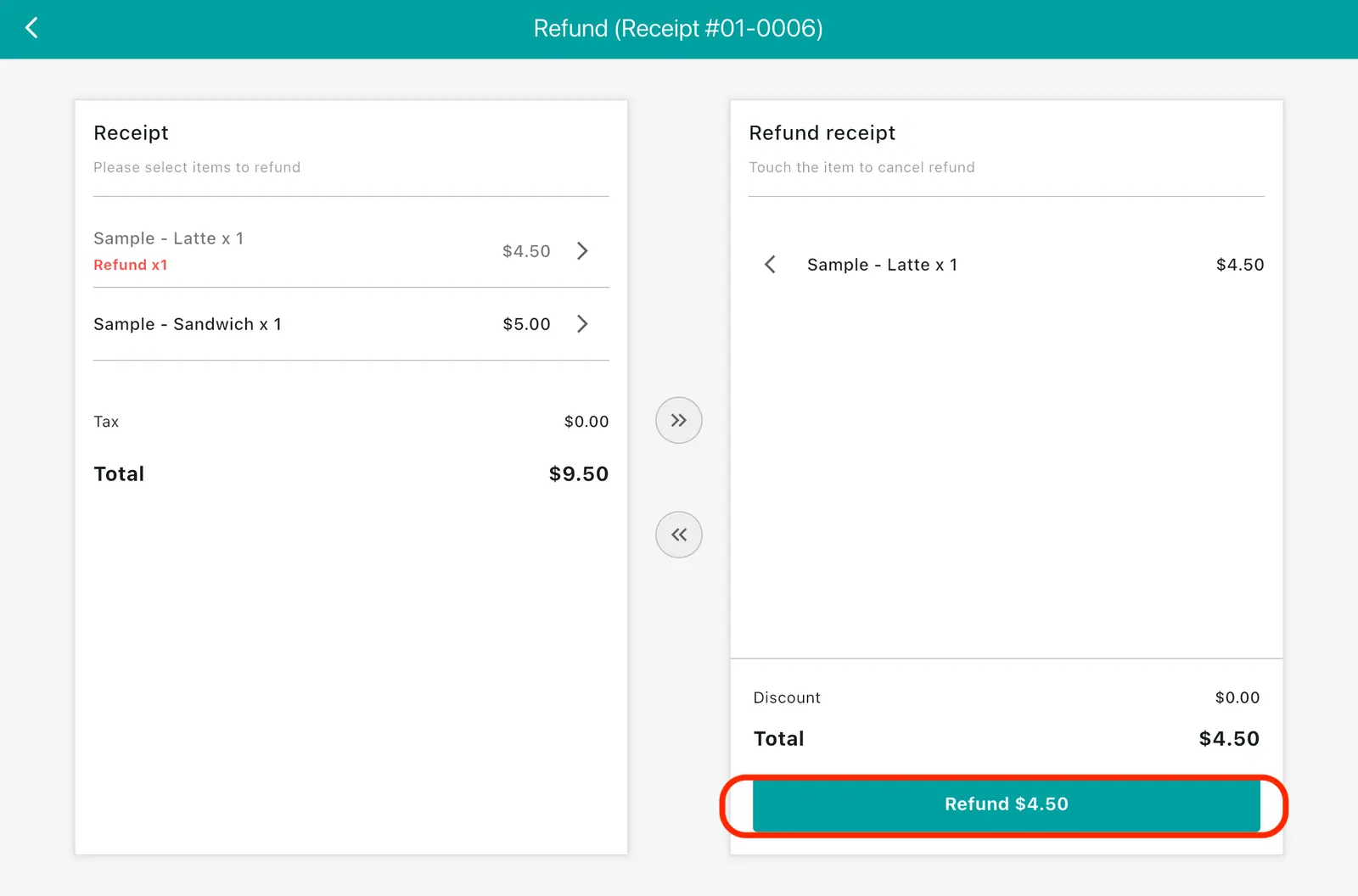
3Check the amount and tap the Return button at the bottom right.
4A refund receipt is added to the receipt list.